Visual Pipeline Editor
Megane's pipeline editor lets you build visualization workflows by wiring nodes — no code required. The editor lives in the Pipeline panel on the right edge of the viewer; when the panel is collapsed, click its Pipeline tab to open it.
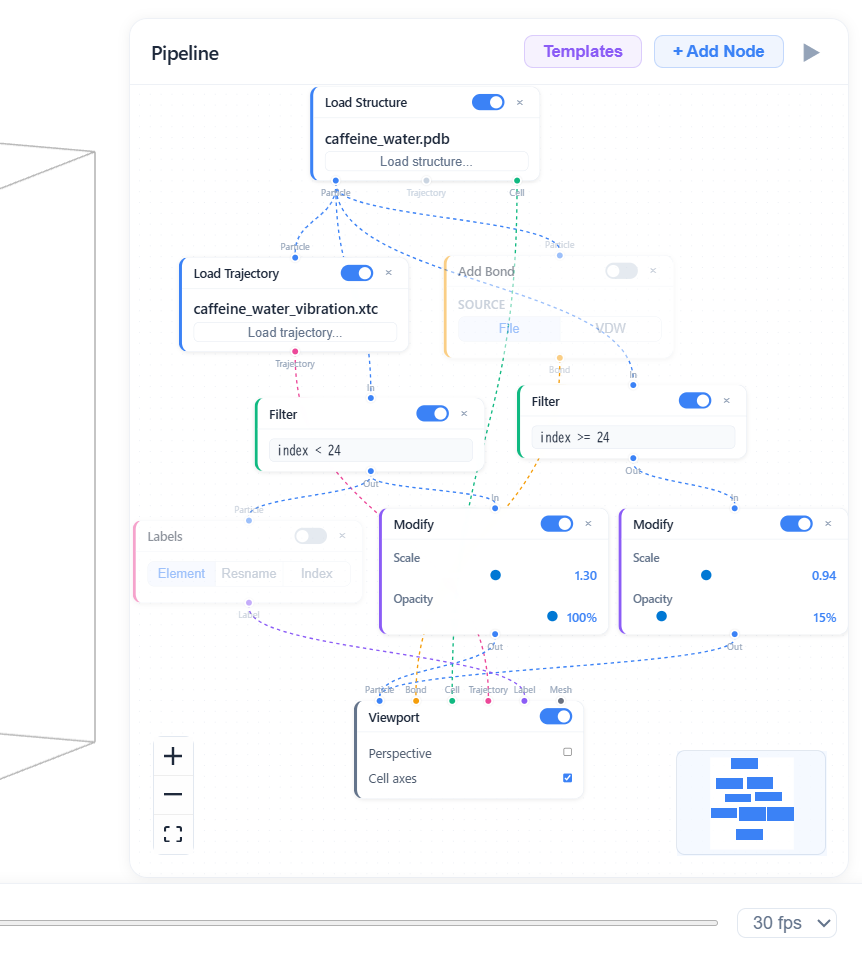
Pipelines can also be built programmatically in Python, TypeScript, or written directly as JSON.
For real-world examples, see the Gallery.
Concept
A pipeline is a directed graph of nodes connected by edges. Data flows from source nodes (like Load Structure) through processing nodes (like Filter or Modify) and into a Viewport node for rendering.
Each edge carries a specific data type — particle, bond, coordination, cell, label, mesh, trajectory, vector, volumetric, or spectrum — and only matching types can connect.
When a node encounters an error or warning — for example, a parse failure in LoadStructure — a colored dot appears on its card (hover it for the message), and the full messages are listed under the node's header in the properties pane.
Editor Layout
The panel has an icon rail down its left edge. From top to bottom:
- Editor and Inspector — the panel's two tabs: the node graph (with the AI assistant docked under it) and the Selection Inspector.
- Add Node and Templates menus, and Auto Layout — these switch to the Editor tab.
- File menu — Import pipeline…, Export pipeline (downloads
pipeline.megane.json; see JSON), and Copy share link…. Then Render, which opens the image/video render dialog. - Guide, Tutorial, and the theme toggle at the foot.
In the Editor tab every node is a compact card showing its category icon, title, and a one-line summary of its parameters; port names appear when you hover or select a card. Under the graph sits the AI assistant's prompt bar, and under that the properties pane: selecting a node opens its form there, whose header holds an On/Off switch (a disabled node is bypassed and drawn with a dashed outline) and a remove button. The divider between graph and pane can be dragged.
To delete a connection, hover (or select) the edge and click the × at its midpoint, or select it and press Backspace / Delete. Dragging an edge's endpoint off its handle onto empty canvas disconnects it; dropping it on another compatible handle rewires it.
Share Links
Copy share link… encodes the current pipeline (compressed) into the URL fragment as #pipeline=…; opening that URL in the standalone web app restores the pipeline. Only the graph is encoded — node parameters and file names, not file contents — so loaders show the file names but the recipient has to load the files. Very large pipelines produce a URL that is too long to share, and the dialog warns about it.
AI Pipeline Generator
Describe the visualization you want in natural language, and Megane builds or edits the node graph for you. The assistant's prompt bar is docked in the Editor tab, between the graph and the properties pane; type a prompt like:
Load protein.pdb with bonds and make water translucent
and press Enter (Shift+Enter adds a line). The generator creates the appropriate LoadStructure, AddBond, Filter, Modify, and Viewport nodes, wires them together, and places them in the editor, where you can see the graph change as the answer arrives. You can then adjust parameters or add more nodes manually.
The assistant works on the pipeline that is already in the editor: each request is sent with the current graph, the nodes you have selected, and the earlier messages of the conversation, so follow-ups such as "make it thicker" or "color this by element" (with a node selected) change that graph instead of starting over. Loaded files stay loaded — the assistant only rewires and re-parameterizes nodes. The speech-bubble button at the left of the bar opens the conversation over the bottom of the graph; every reply that changed the pipeline offers Undo while it is the latest change, which restores the graph from before that request. Opening another file clears the undo history.
Open AI Settings (the ⚙ button beside the chat input) to choose a provider (Anthropic or OpenAI), a model, and your API key. The provider and model are remembered in the browser; the API key is held only for the current session and is not saved. Builds configured with Megane's shared proxy also offer a rate-limited free demo that needs no key — tick Use my own API key to use your own provider instead.
The generator checks its own output after each generation: the pipeline schema, the selection-query syntax, edge types, and — when a structure is loaded — the errors the graph actually produces when executed (e.g. Filter returned 0 atoms). Any findings are sent back to the model to fix, for up to two repair rounds.
VS Code Extension Auto-Setup
When you open a supported molecular file (.pdb, .gro, .xyz, .cif, .data, .lammpstrj, POSCAR, and the rest of the formats listed in Platform Support) in the Megane VS Code extension, it automatically creates a default pipeline consisting of LoadStructure → Symmetry → Wrap → Replicate → AddBond → Viewport. The AddBond source is picked from the format — bonds read from the file for formats that carry them (PDB, MOL/SDF, LAMMPS data, CML, …), distance-based inference otherwise. This gives you an immediate 3D view of the structure with bonds, without needing to build a pipeline manually. You can then modify the auto-generated pipeline in the editor as needed. A .megane.json file opens as the pipeline it describes (see JSON).
Getting Started
The simplest pipeline loads a structure and displays it:
LoadStructure → Viewport
To add bonds inferred from atomic distances, feed the particles both to an AddBond node and to the Viewport:
LoadStructure ──particle──→ AddBond ──bond──→ Viewport
      └──────────particle, cell─────────────→ Viewport
Use the Templates menu on the rail to replace the pipeline with a pre-built one:
- Molecule — Caffeine (
caffeine_water.pdb) with structure-based bonds and a vibration trajectory (caffeine_water_vibration.xtc). Nodes:LoadStructure → Symmetry → Wrap → AddBond → Viewport, withLoadTrajectoryfeeding its frames through the sameSymmetry → Wrapinto the Viewport. - Molecular Crystal — Glycine (
glycine_csd.cif) with atoms normalized into the home cell and finite molecules completed across its faces. Nodes:LoadStructure → Symmetry → Wrap, followed by parallelAddBondandDrawingBoundarybranches that join atBoundaryCompletion → Viewport. - Solid — Perovskite SrTiO₃ 3×3×3 supercell with TiO₆ coordination polyhedra. Nodes:
LoadStructure → Symmetry → Wrap → DrawingBoundary → Coordination → PolyhedronGenerator → Viewport. Coordination detects metal centers and neighboring anion-former atoms; its Bond output also renders the neighbor atoms required to complete boundary coordination environments. - Surface Mesh — A faceted gold nanoparticle (
au_nanoparticle.xyz, 1385 atoms: a Wulff-shaped fcc cluster with eight 111 and six 100 facets) wrapped in an OVITO-style alpha-shape envelope. Nodes:LoadStructure → Symmetry → Wrap → SurfaceMesh → Viewport (mesh), with the atoms also sent to the Viewport. An alpha-shape is a free-surface construction, so an isolated particle is what it shows best; the 3 Å probe sits just above the 2.88 Å Au–Au distance, small enough to follow the facets. - Protein — HIV-1 protease with the drug indinavir bound in its active site (
1hsg.pdb, PDB 1HSG). The polymer is drawn as a cartoon (Filter (resname != "HOH" and resname != "MK1") → Modify (opacity 0) → Representation (both)), indinavir ball-and-stick (Filter (resname == "MK1")), and the crystal waters are split withwithin 3.5 of (resname == "MK1")into the seven that touch the drug — including the "flap water" bridging it to both Ile50 amides — and the bulk, hidden at opacity 0. Bonds go throughAddBond → Filter (bond_query "not both atom_index >= 1514") → Modify (opacity 0)so only the drug keeps its sticks: a bond does not inherit its atoms' opacity. - ESP Map — Caffeine's electron-density surface colored by its electrostatic potential, from one B3LYP/6-31G* calculation (
generate_caffeine_dft_esp.py).LoadStructure (caffeine_b3lyp.sdf) → Symmetry → Wrap → AddBond → Viewportdraws the molecule; twoLoadVolumetricnodes read the density (caffeine_b3lyp_density.cube) and the potential (caffeine_b3lyp_esp.cube), and oneIsosurfacecontours the density at 0.002 e/Bohr³ — the conventional molecular surface — in color modevolume, painting each vertex from the potential wired to itscolorVolumetricinput. Red is negative (the two carbonyl oxygens, the imidazole N9 lone pair), blue positive (the methyl and C8–H hydrogens), over a fixed ±0.04 Hartree/e range. The three files share one coordinate frame, so nothing in the graph aligns them. - Coarse-Grained Overlay — Ubiquitin before and after coarse-graining, superimposed: the all-atom model (
1ubq.pdb) ghosted at 30 % opacity behind one bead per residue (1ubq_cg.pdb, each bead at its residue's heavy-atom center of mass). TwoLoadStructurenodes feed one Viewport and render as separate structure layers. The all-atom side splits into twoFilter → Modifybranches — protein at opacity 0.3, the 58 crystallographic waters at opacity 0 — because a Modify behind a Filter writes its opacity only at the selected atoms and leaves the rest fully opaque. The bead side scales up ×3.2 and takes a uniform Color so it reads over the ghost, with its backbone drawn from the CG file'sCONECTrecords. - Streaming — A
Streamingnode wired to the Viewport (particle, bond, trajectory, cell) for live WebSocket data; the Streaming node only works on the standalonemegane servehost.
Node Reference
Every node type — its purpose, ports, and every parameter — lives in the
Node Reference, generated directly from the
pipeline source (src/pipeline/catalog.ts) so it never drifts from the code.
Jump straight to a node, e.g. polyhedron_generator.
Data Types
Ten typed data channels flow through color-coded edges:
| Type | Color | Description |
|---|---|---|
| particle | Blue | Atom positions, elements, and optional indices/overrides |
| bond | Amber | Bond pairs and orders |
| coordination | Orange | Directed center–neighbor pairs from the Coordination node, consumed by Polyhedra |
| cell | Emerald | Simulation cell (3×3 matrix) |
| label | Violet | Text labels positioned at atoms |
| mesh | Gray | Triangle mesh for polyhedra rendering |
| trajectory | Pink | Multi-frame coordinate data |
| vector | Red | Per-atom 3D vector data (forces, velocities, etc.) |
| volumetric | Cyan | Scalar field on a 3D grid, consumed by the Isosurface node |
| spectrum | Lime | 2D (x, y) trace, consumed by the terminal Spectrum Plot node |
Filter DSL
The Filter node accepts Python-like query expressions to select atoms.
Available Fields
| Field | Type | Description |
|---|---|---|
element | string | Element symbol (e.g., "C", "O", "Fe") |
index | number | Atom index (0-based) |
x, y, z | number | Cartesian coordinates |
resname | string | Residue name (e.g., "ALA", "HOH") |
resid | number | Residue sequence number (e.g. 42 for ALA42) |
chain | string | Chain ID (e.g., "A"); atoms without chain info compare as "" |
mass | number | Atomic mass |
molecule_id | number | 0-based connected-component (molecule) ID, derived from bond connectivity. Atoms with no bonds form their own single-atom molecule |
Operators
==, !=, >, <, >=, <=
Logical Operators
and, or, not, parentheses ()
Special Keywords
all — select all atoms, none — select no atoms
within R of (…) — every atom within R Å of any atom the inner expression selects (including those atoms)
Examples
element == "C"                         # All carbon atoms
index > 10 and index < 20             # Atoms 10–19
resname == "HOH"                       # Water molecules
not element == "H"                     # Non-hydrogen atoms
element == "O" or element == "N"       # Oxygen or nitrogen
(x > 0 and x < 10) and element == "C" # Carbons in x range
mass > 32                              # Atoms heavier than sulfur
molecule_id == 0                       # Atoms belonging to the first molecule
not molecule_id == 0                   # Everything except the first molecule
chain == "A" and resid < 50            # Chain A residues numbered below 50
within 5 of (resname == "HEM")         # Everything within 5 Å of the heme
Bond Selection DSL
The Bond query field in the Filter node accepts expressions to select bonds.
Available Fields
| Field | Type | Description |
|---|---|---|
bond_index | number | 0-based sequential bond index |
atom_index | number | Atom endpoint index |
element | string | Element symbol of an atom endpoint (e.g., "C", "O") |
molecule_id | number | 0-based molecule ID of the bond's endpoints (both endpoints always share the same ID) |
Operators
==, !=, >, <, >=, <=
Logical Operators
and, or, not, parentheses ()
Special Keywords
all— select all bonds (default when query is empty)none— select no bondsboth— prefix on a comparison involvingatom_indexorelementto require both atoms of the bond to satisfy the condition (default: either atom, OR semantics). Has no effect onbond_indexcomparisons, and is redundant (but harmless) formolecule_id, since both endpoints of a bond always share the same molecule ID.
Examples
element == "C"                         # Bonds where either atom is carbon
both element != "H"                    # Bonds where neither atom is hydrogen
atom_index >= 24                       # Bonds involving atom 24 or higher
bond_index < 10                        # First 10 bonds only
both atom_index >= 0 and bond_index < 50  # First 50 bonds (all-atom filter)
molecule_id == 0                       # Bonds within the first molecule
The bond query selects which bonds a downstream Modify node applies opacity overrides to. This lets you selectively fade specific bonds without removing them from the scene.
Editor Examples
TiO₆ Octahedra in SrTiO₃
- Load a perovskite structure (
LoadStructure) - Add
Drawing Boundary,Coordination, andPolyhedranodes - Connect
LoadStructure.particle → DrawingBoundary.particle → Coordination.particle, andDrawingBoundary.particle → Viewport.particle - In the Coordination node's Center atoms, untick Sr so only TiO₆ polyhedra are built (Ti centers and O neighbors are auto-detected)
- Connect
Coordination.coordination → Polyhedra.coordination,Polyhedra.mesh → Viewport.mesh, andCoordination.bond → Viewport.bond
Or use the Solid template which sets this up automatically.
Make Solvent Translucent
Use Filter + Modify nodes to fade out water molecules while keeping the protein fully visible.
- Add a
LoadStructurenode and load your PDB file - Add a
Filternode with query:resname == "HOH" - Add a
Modifynode and set opacity to 0.2, scale to 0.5 - Connect:
LoadStructure.particle → Filter.in → Modify.in → Viewport.particle - Connect the original
LoadStructure.particle → Viewport.particleas well (for the protein)
The viewport renders both streams — the protein at full opacity, and the water as translucent small spheres.
Modify a Single Molecule (Atoms + Bonds Together)
molecule_id lets you target one molecule (a connected component of the bond
graph) and fade its atoms and bonds together, using the same query on both
streams.
- Add a
LoadStructurenode and load a structure with multiple molecules (e.g.caffeine_water.pdb) - Add an
AddBondnode and connectLoadStructure.particle → AddBond.particleto produce a bond stream - Add two
Filternodes:- Filter A (atoms): query
not molecule_id == 0 - Filter B (bonds): bond query
not molecule_id == 0
- Filter A (atoms): query
- Add two
Modifynodes and set opacity to 0.15 on each - Connect:
LoadStructure.particle → FilterA.in → ModifyA.in → Viewport.particleLoadStructure.particle → Viewport.particle(the original full-opacity atoms)AddBond.bond → FilterB.in → ModifyB.in → Viewport.bond— do not also wireAddBond.bondstraight to the Viewport: a bond-query Filter keeps every bond and only marks the selection, so this one stream already carries all bonds, and the Viewport draws a single bond stream per structure
Molecule 0 (the component containing atom 0) stays fully opaque, while every
other molecule's atoms and bonds fade together — both Filter nodes derive
molecule_id from the same underlying bond connectivity.
Expand a Crystal's Asymmetric Unit
A CIF lists only the crystallographic asymmetric unit plus the space-group
operations, and Megane's parser returns exactly that. The Symmetry node
applies those operations to fill one unit cell with the symmetry-equivalent
molecules, VESTA-style. The default pipeline and the structure templates
already carry one directly after LoadStructure in its expand mode (the
Coarse-Grained template's second, CG-bead loader has none), so a loaded CIF
shows the full unit cell out of the box:
- Load a CIF (other formats carry no space-group operations, so the node is a transparent pass-through for them)
- Select the
Symmetrynode in the graph - Pick a mode:
- Expand applies the space-group operations (the default) — bonds are replicated per symmetry image, and images that coincide on special positions are dropped
- None shows the raw asymmetric unit exactly as the file lists it
Pipelines saved before the node existed have no Symmetry node, so a CIF
loaded through them shows the asymmetric unit; add the node after
LoadStructure to recover the packed cell.
Wrap / Unwrap a Periodic Structure
The Wrap / Unwrap node toggles periodic-image coordinate mapping without
changing the file. The default pipeline and the structure templates already
carry one between LoadStructure and the rest of the graph, in its
pass-through mode (none) except in the Molecular Crystal template, which
wraps (wrap); the Coarse-Grained template's CG-bead loader has none. The
toggle is a single dropdown click:
- Load a periodic structure (a unit cell is required)
- Select the
Wrap / Unwrapnode in the graph - Pick a mode:
- Wrap folds every atom back into the home unit cell (useful for trajectories whose coordinates drift out of the box)
- Unwrap shifts atoms by whole lattice vectors so molecules split
across a periodic face become whole again, VESTA/Mercury-style —
connectivity comes from the file's bonds, or the same distance-based
inference the
AddBondnode uses when the file has none - None passes coordinates through untouched (the default)
A connected trajectory is remapped frame by frame with the same convention, so playback follows the chosen mapping too. The unit cell itself never changes — unwrapped molecules may poke outside the cell wireframe.
Multiple Structure Layers
You can load multiple structure files simultaneously, with each file rendered as a separate layer in the viewport. Each LoadStructure node connected to a Viewport creates an independent rendering layer, allowing you to combine different molecules in a single view.
For example, to display a protein and a ligand loaded from separate files:
LoadStructure (protein.pdb) → AddBond → Viewport
LoadStructure (ligand.mol)  → AddBond ↗
Each layer is processed independently through its own chain of Filter, Modify, and overlay nodes before reaching the Viewport.
For more examples with code, see the Gallery.